
Migrating from Docker Desktop to Native WSL Docker: A Complete Guide
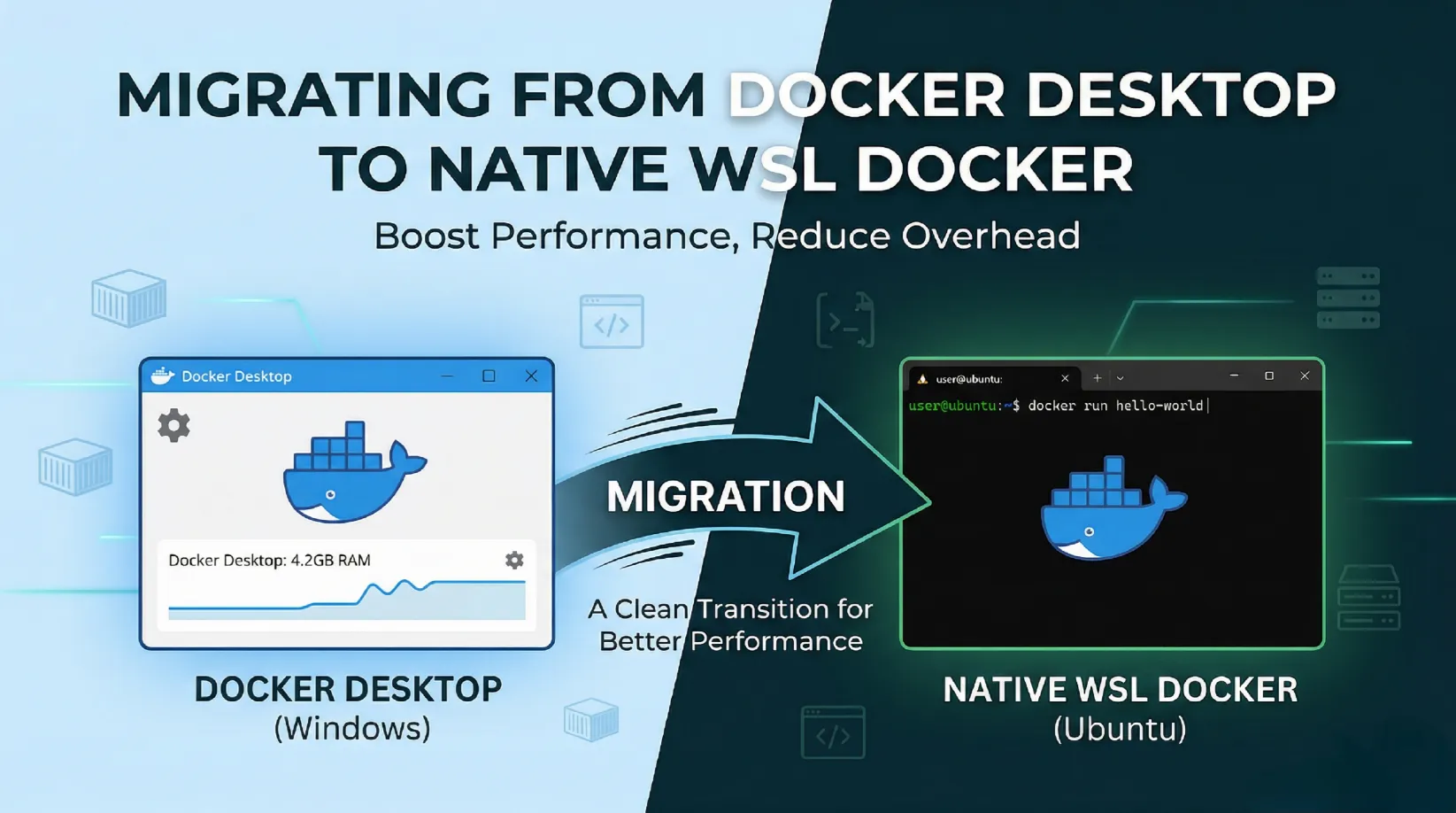
Docker Desktop is a fantastic tool, providing a seamless GUI and easy setup on Windows. However, for those of us looking for better performance, lower resource consumption, and a more native Linux experience, running Docker directly inside Windows Subsystem for Linux (WSL) is the way to go.
Today, I decided to take the leap and transition my environment from Docker Desktop to a full native WSL Docker setup, specifically on Ubuntu 24.04. In this post, I will walk you through my thought process and the exact steps I took to achieve this optimization.
1. The Starting Point
Before diving in, my environment consisted of:
- Windows 11 with WSL 2 enabled.
- Ubuntu 24.04 already installed via WSL.
- Docker Desktop currently managing my localized containers.
Since I already had my WSL distribution (Ubuntu) set up and running, the next logical step was to dismantle the old setup to make way for the new.
2. Removing the Crutches (Uninstalling Docker Desktop)
The very first action was to uninstall Docker Desktop. While it is possible to have both side-by-side if you are careful, the cleanest and most error-free approach is to fully remove Docker Desktop.
I ran the following command in PowerShell to remove it efficiently:
winget uninstall "Docker Desktop"
3. Native Docker Installation
The most prominent step is installing the Docker Engine natively inside Ubuntu. Rather than using bloated installers, we rely purely on apt to add Docker’s official GPG keys and install the necessary packages.
To make things easy, you can simply run these commands sequentially in your WSL terminal:
# 1. Update apt and install prerequisites
sudo apt-get update
sudo apt-get install -y ca-certificates curl

# 2. Add Docker's official GPG key
sudo install -m 0755 -d /etc/apt/keyrings
sudo curl -fsSL https://download.docker.com/linux/ubuntu/gpg -o /etc/apt/keyrings/docker.asc
sudo chmod a+r /etc/apt/keyrings/docker.asc

# 3. Add the Docker repository to APT sources
echo "deb [arch=$(dpkg --print-architecture) signed-by=/etc/apt/keyrings/docker.asc] https://download.docker.com/linux/ubuntu $(. /etc/os-release && echo "$VERSION_CODENAME") stable" | sudo tee /etc/apt/sources.list.d/docker.list > /dev/null

# 4. Install Docker Engine
sudo apt-get update
sudo apt-get install -y docker-ce docker-ce-cli containerd.io docker-buildx-plugin docker-compose-plugin
This installs the Docker Engine silently and efficiently.
4. Permissions & DNS Configuration (The Magic One-Liner)
Out of the box, WSL needs two crucial tweaks for Docker to run perfectly:
- User Permissions: You need to be in the
dockergroup so you don't have to typesudo dockerfor every single command. - Networking: WSL's automatic DNS generation can cause connectivity drops inside Docker containers. We need to disable it and use reliable public DNS servers (like Cloudflare's
1.1.1.1and Google's8.8.8.8).
To make this extremely reader-friendly, I have consolidated this entire configuration into a single, copy-pasteable PowerShell command.
Open your Windows PowerShell (as Administrator) and run this magic one-liner:
# Note: Change 'Ubuntu-24.04' if your distro name differs.
# Also substitute 'YourUsername' with your actual WSL Linux username.

wsl -d Ubuntu-24.04 -u root -e bash -c "addgroup docker || true && usermod -aG docker YourUsername && echo -e '[boot]\nsystemd=true\n\n[network]\ngenerateResolvConf = false' > /etc/wsl.conf && rm -f /etc/resolv.conf && echo -e 'nameserver 1.1.1.1\nnameserver 8.8.8.8' > /etc/resolv.conf"
This single command automatically configures your user groups, enables systemd (which is required by the Docker daemon), and enforces a stable DNS setup!
6. Windows Integration & The "On-Demand" Advantage
The most common question you might have at this point is: "Does Docker automatically start every time Windows boots up?"
The short answer is: No. And surprisingly, that is the biggest technical advantage of this native WSL setup.
Unlike Docker Desktop, which notoriously reserves 2GB-4GB of RAM the moment you hit the Windows login screen, WSL utilizes an elegant "On-Demand" booting strategy. The Ubuntu environment, along with its background Docker daemon, remains asleep. It consumes zero CPU and zero RAM until the exact moment you invoke it.
But what if we want to seamlessly run Docker commands directly from our Windows Command Prompt or PowerShell, without having to type wsl every time?
We can achieve this by creating tiny wrapper scripts. Here's how:
- Create a directory for your personal scripts if you don't already have one, and ensure it's added to your Windows environment variables
%PATH%(for example,C:\Users\YourUsername\.local\bin). - Inside that folder, create a file named docker.bat and add the following exact line:
bat
@wsl -d Ubuntu-24.04 docker %* - Create a second file named docker-compose.bat to handle compose commands:
bat
@wsl -d Ubuntu-24.04 docker compose %*
(Note: Replace Ubuntu-24.04 with your exact WSL distribution name if it differs).
With these wrappers in place, typing docker run in your Windows terminal instantly wakes up the WSL kernel in less than a second and seamlessly pipes your commands directly to the native Linux Docker Engine. You get the perfect hybrid: native Linux performance with native Windows CLI convenience.
7. The Verification
To ensure all new configurations kick in (especially systemd and resolv.conf), the environment has to be completely restarted:
wsl --terminate Ubuntu-24.04
Wait a few seconds, then reboot the distribution. With the configurations correctly in place, Docker Engine initialized automatically thanks to systemd being enabled in wsl.conf.
I ran the universal sanity-check simply by typing:
docker run hello-world
The output streamed in:
Hello from Docker! This message shows that your installation appears to be working correctly.
Conclusion
Migrating away from Docker Desktop into a pure WSL-native Docker setup strips away the overhead of extra GUI applications running in the background. It delegates container management strictly to the WSL Linux kernel where it operates identically to a real server deployment.
The migration went seamlessly and my development machine is now leaner and faster. If you've been hesitant about making the jump, following these steps should get you to a robust, native Docker setup in minutes. Happy coding!
Related Posts
Mirroring My AI Workspace to a 1GB VPS: A Weekend Migration
My local OpenCode setup was getting too useful to leave on one laptop. Here's the weekend I cloned it all to a $5 VPS, swapped the provider, and kept Telegram working.
Windows Terminal: Changing the Default Shell to WSL Ubuntu
Optimize your developer workflow by setting WSL Ubuntu as the default shell in Windows Terminal. Follow these simple steps to update your defaultProfile GUID and learn how to automatically provision your terminal with a custom dotfiles repository.